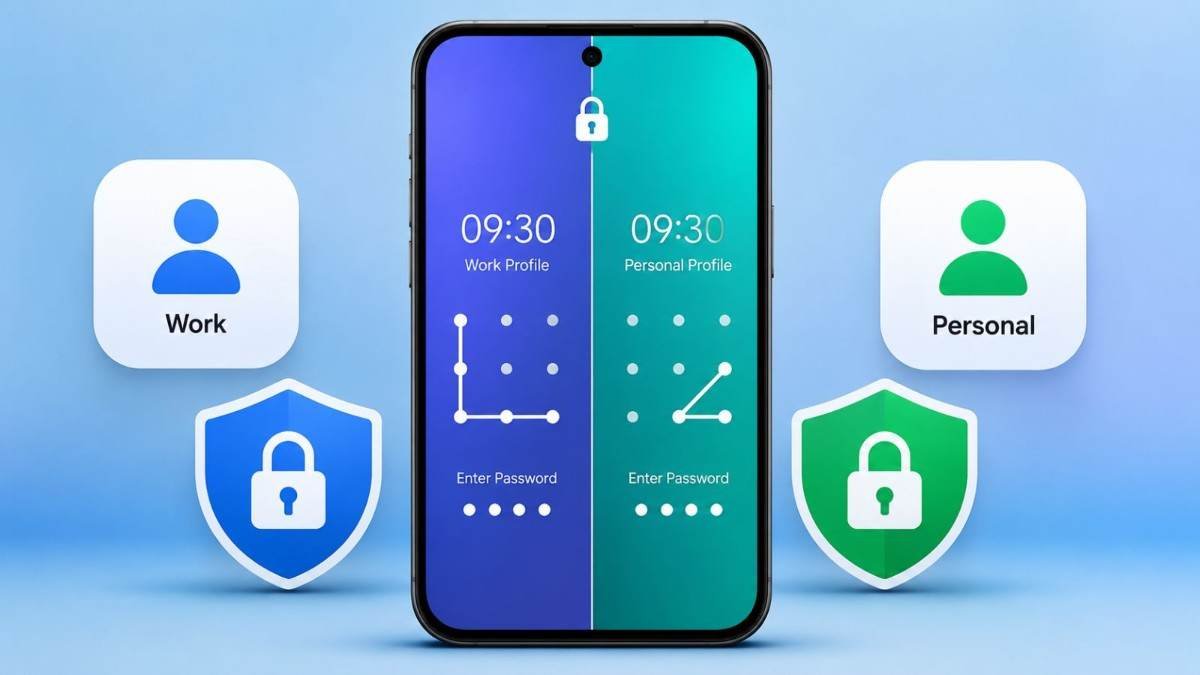
Set Two Passwords: Have you ever wished your Android phone could act like two separate phones at the same time One password shows all your apps photos videos and contacts while another password shows a clean empty space with nothing private visible This is possible with a built in feature on many phones especially Xiaomi Redmi and Poco models called Second Space
It lets you create a completely separate area on the same device so you can keep personal things safe when someone else wants to check your phone or when the whole family shares one device The idea is simple and helpful Imagine your family or friends ask to look at your phone for a moment
You do not have time to hide chats or delete photos Instead you just unlock with the second password and they only see a basic empty looking phone Your real data stays completely hidden until you enter the first password again It feels like carrying two phones in one pocket This guide walks you through how the feature works step by step using simple words Anyone can follow it even if you are new to phone settings
What Is Second Space and Why It Helps
Second Space creates a second complete environment inside your phone The first space is your normal everyday phone with all apps messages photos and contacts The second space starts almost empty like a brand new phone You can install apps set different wallpapers add different accounts and keep private photos or chats only there Data does not mix between the two spaces Photos taken in one space do not show in the other
Apps installed in one stay only there Contacts stay separate too When you enter one password on the lock screen you go into the main space When you enter the other password you go into the clean second space People find this useful in many everyday situations A shared family phone can have one space for kids games and another for parent messages Someone who wants privacy from a partner or roommate can keep personal chats safe Work and personal life can stay apart without needing a second device The switch happens right from the lock screen so it stays quick and quiet
Prepare Your Phone First
Before starting make sure your lock screen uses a PIN not a pattern or long password Open Settings then look for Lock screen or Security and set a simple PIN This helps the two password system work smoothly Search for the feature to confirm your phone supports it Open Settings and use the search bar at the top
Type Second Space If it appears your phone has the option Xiaomi Redmi and Poco phones running MIUI or Hyper OS usually include it Other brands have similar tools with different names but the idea stays close
How to Turn On Second Space Step by Step
How to Set Up Second Space on Android
Step 1: Open the Settings app on your phone.
Step 2: Scroll down or use the search option to find Additional Settings or Special Features.
Step 3: Tap Second Space.
Step 4: Select Turn on Second Space or Create Second Space.
Step 5: Wait a few moments while your phone creates the new space.
Step 6: Choose how you want to switch between the two spaces. Select Using a Password instead of a shortcut.
Step 7: Tap Continue.
Step 8: Enter the PIN/password of your main space when asked.
Step 9: Create a new PIN for your second space. Enter it again to confirm.
Step 10: If the phone asks about fingerprint access, you can skip it for now and add it later.
Step 11: Wait for the setup to finish. Your new Second Space will start with basic system apps.
How to Switch Between the Two Spaces
Lock your phone by pressing the power button On the lock screen enter the PIN for the space you want
Enter the main space PIN and you see all your normal apps photos videos and contacts Enter the second space PIN and you see the clean empty looking space with no personal data
Switching can take a few seconds while the phone changes environments That short wait is normal Once inside you can use the phone as usual Install apps take photos or chat in that space only
If you want a quicker way some phones also show a Switch icon on the home screen after setup Tapping it and entering the right PIN moves you between spaces But the lock screen method stays the most private because no extra icons appear
Tips for Using Two Spaces Everyday
Keep the two PINs different and easy for you to remember but hard for others Write them somewhere safe at home if needed
In the second space you can install the same apps again with different accounts For example one WhatsApp in the main space and another in the second space for private chats
Move photos or files if you want Open the Second Space settings and look for Move data options Transfer only what you need
Notifications from one space usually stay hidden when you are in the other This keeps things private
If you share the phone with family put kids games and simple apps in one space and keep adult chats or work tools in the other
Remember the second space uses some extra storage because apps and files exist separately Check your available space from time to time
Similar Features on Other Phones
Not every Android phone has Second Space with the exact same name Samsung offers Secure Folder which hides apps and files behind its own lock Huawei and Honor use Private Space Realme Oppo and OnePlus have System Cloner or Parallel Space tools Newer Android versions from Google include Private Space
The steps change a little by brand but the goal stays the same Create a separate protected area and switch with different unlock methods Search your Settings for words like Private Space Secure Folder or System Cloner to find what your phone offers
Pattern Lock
Mobile Pattern Unlock
in 3 seconds…
Disclaimer : This tool is created for educational and entertainment purposes only.
It is a dummy simulator designed only to demonstrate pattern concepts.
Keeping Things Safe and Simple
Always use strong but memorable PINs Avoid easy numbers like 1234 if possible Add a fingerprint later only if you want faster access with a different finger for each space Do not share either PIN with anyone you do not fully trust The whole point is privacy If you ever want to remove the second space go back to Settings Second Space and choose the delete or turn off option More Unlick
The phone will ask for confirmation Data in that space will be removed so move anything important first This feature has been part of many phones for years and continues to help people manage privacy without extra devices
Read more : 7 Best Free AI Tools for Work, Content Creation, Productivity and More
FAQ – Questions & Answers
Q1. What phones support setting two passwords on the lock screen with Second Space?
A: Xiaomi, Redmi, and POCO phones with MIUI or HyperOS support this feature most fully. Other brands may offer similar separate-space features under different names.
Q2. Will data from one space show in the other?
A: No. The two spaces remain separate. Apps, photos, videos, contacts, and accounts from one space do not normally appear in the other.
Q3. Can I use a fingerprint for both spaces?
A: Yes. You can set different fingerprints so one fingerprint opens the main space and another opens the second space. You can also skip the fingerprint step during setup and add it later from Settings.
Q4. What happens if I forget one of the PINs?
A: You can still access the other space using its PIN. To reset a forgotten Second Space PIN, you may need to remove and recreate the Second Space, which can delete its data. Keep both PINs in a safe place.
Q5. Is it safe to keep private chats in the Second Space?
A: Yes. Second Space provides an additional privacy layer because the separate space requires its own PIN or unlock method. However, it should not be treated as a guarantee against every form of access or data loss.
Q6. Why should I use Second Space?
A: It can turn one phone into two separate environments, making it useful for keeping personal and private content separate with different unlock codes.